
OVERVIEW


FEATURES



BY TEAM


BY WORKFLOW


Azure AD – OpenID
Microsoft Entra ID, formerly Azure Active Directory (Azure AD), is Microsoft’s cloud identity provider (IdP). It authenticates users and issues signed identity assertions to the applications that trust it. Kualitee integrates with it as a service provider (SP), so users sign in with their organizational Microsoft credentials. Kualitee does not store or validate those passwords itself.
Configuration Steps for OpenID
- Sign in with your Microsoft account
- Click on “Enterprise Application” or search for “Enterprise Application”
- Click on “New application” button

- Click on “Create your own application”

- Enter name and select option accordingly.

- Click on Setup single sign on option.

- Click on SAML

- Click on Edit icon and a side panel will open.

- Click on “Add identifier” and add any name and then click on “Add reply URL”. (Get the URL from Kualitee by following the below mentioned steps).
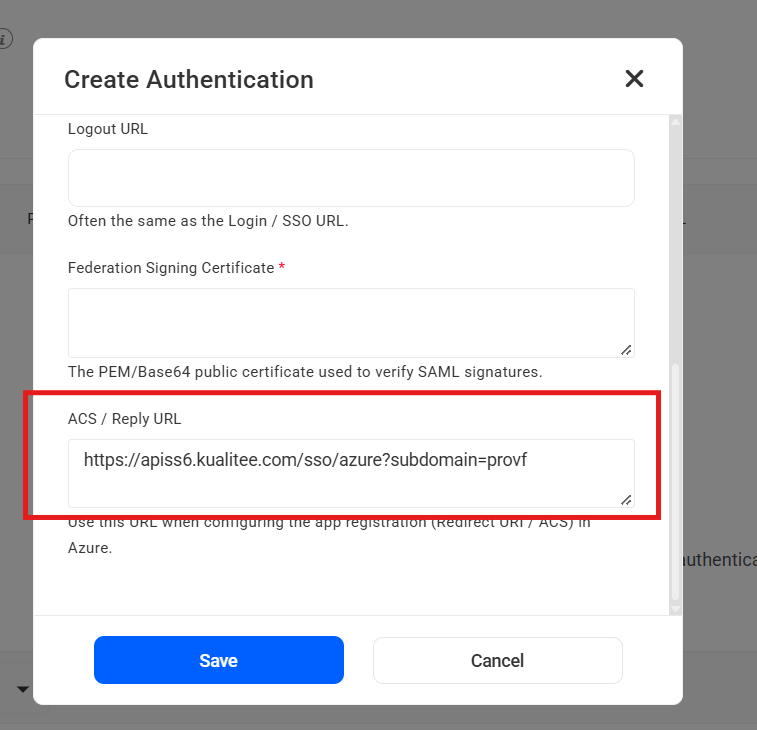
- Go to Kualitee domain. Settings > Authentications tab and select the tool as Azure.
- A popup will display, copy the URL from that popup and paste it in “Add reply URL” field.

- Now back to Azure portal and click on overview option from right panel and navigate to Overview screen.
- Now click on “Assign users and groups”

- Click on Add user button.

- Click on “none selected” under users, select the user, click on select button, and then click on Assign button.

- Now search for “App registration” in the search bar at top.
- Select the option to view your application.

- Select your application and navigate to Application overview screen.

- Click on “Add a certificate or secret” option

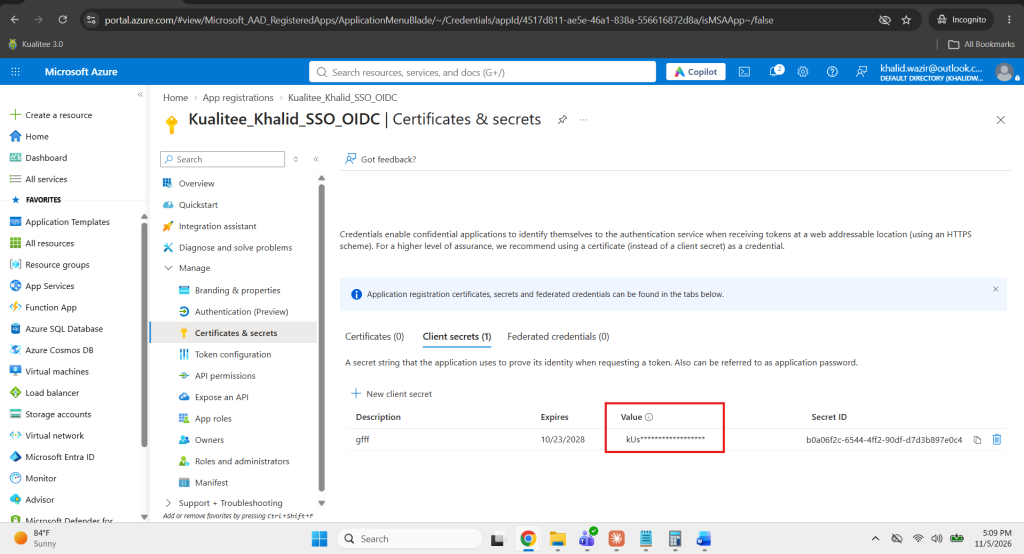
- Click on “New client secret” a side panel will open. Enter description, select expiry date and click on Add button. Your secret id will be generated

- Go to the authentication tab from the right panel then go to settings and select the “Access token” option.
- Click on Save button

- Now copy the Application ID, Directory (tenant) ID and secret value

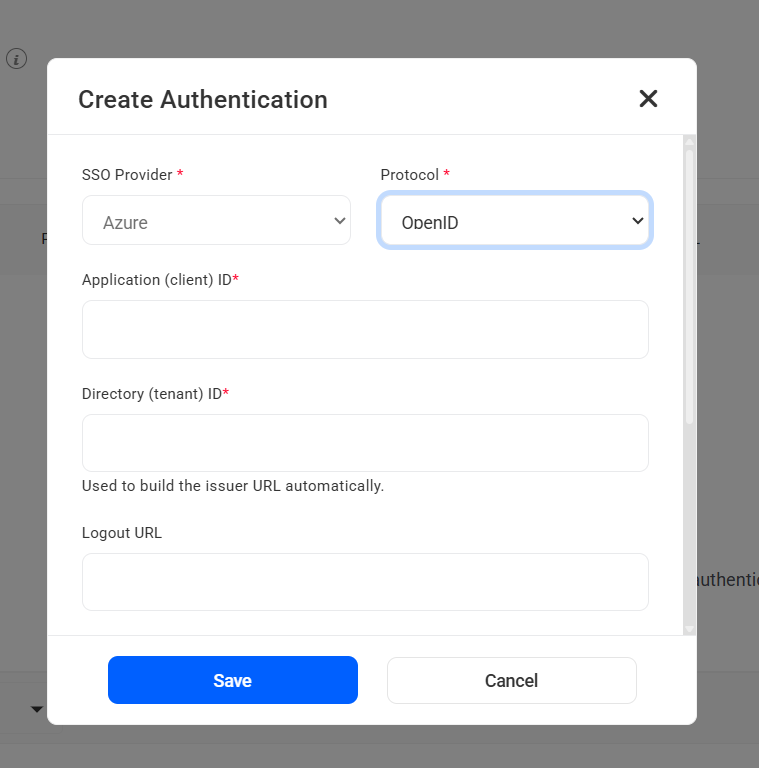
- Go to Kualitee domain. Settings > Authentications tab and select the tool as Azure
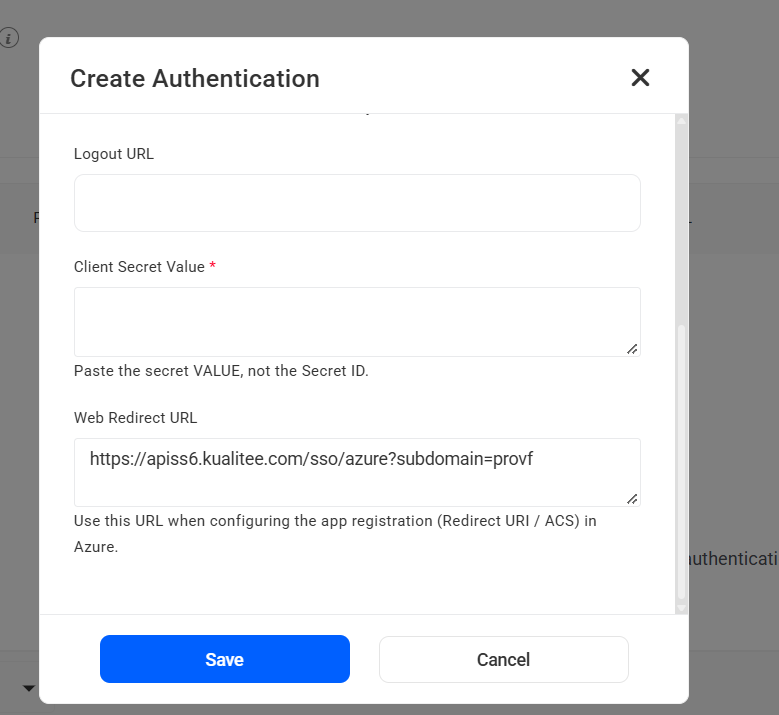
- In the protocol dropdown, select OpenID option, paste the values in the field that we have copied in previous steps.
- Click on “save” button and set up is completed
- Now, logout your Kualitee and click on “Login with Azure” button on the login screen
- Select the account (give the permission if asks)
- You will be redirected to Kualitee dashboard.
User Guide
-
Dashboard
-
Project Management
-
Risk-Based Testing
-
Test Management
-
Hootie
-
Test Lab
-
Defect Management
-
Task Management
-
Reports
-
Insights
-
Settings
-
Integrations
-
Authentications
-
Test Case Repositories