





Steps Library
The Steps Library allows you to create reusable test steps that can be used across multiple test cases. This helps eliminate duplicate work, ensures consistency, and makes it easier to maintain common testing procedures.
Create a Step
Follow these steps to create a reusable step:
- From the left navigation menu, click Test Management.
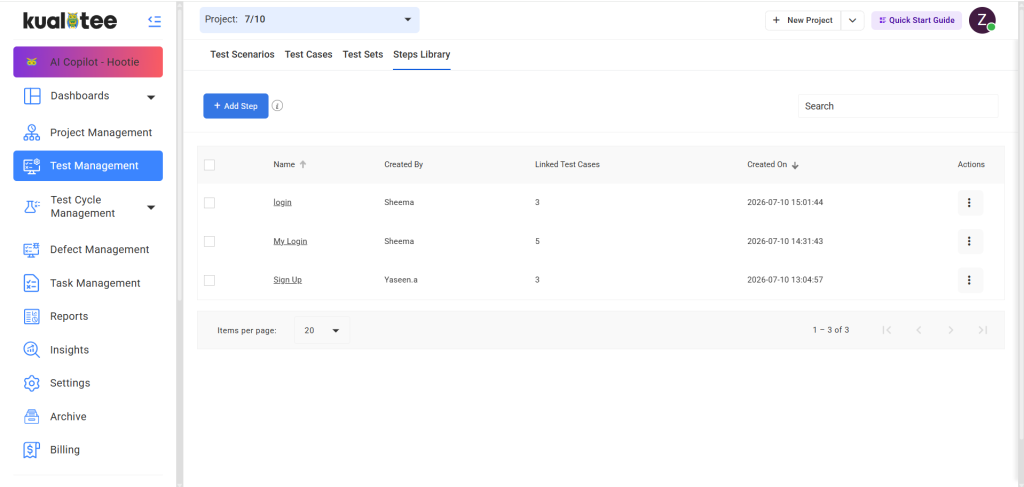
- Select the Steps Library tab located alongside Test Scenarios, Test Cases, and Test Sets.
- Click + Add Step above the Steps Library list.
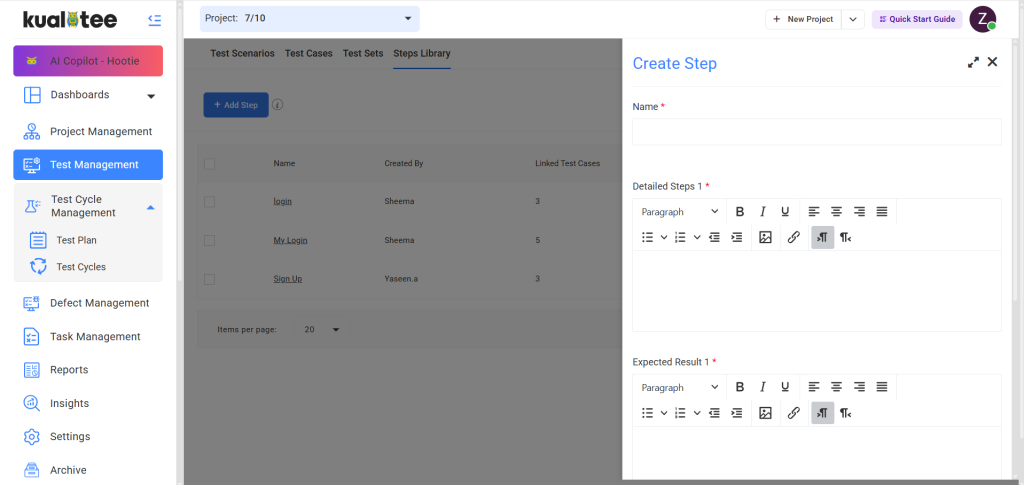
- The Create Step panel opens on the right side of the screen.
- Enter the required step details:
- Step Name – Enter a descriptive name for the reusable step.
- Detailed Steps – Add the test steps that you want to reuse.
- Expected Results (if applicable) – Specify the expected outcome for each step.
- Attachments
- Click + Save.
The step is created successfully and appears at the top of the Steps Library list, making it available for use in any test case.
Use Steps from the Steps Library in a Test Case
After creating one or more reusable steps in the Steps Library, you can insert them into any test case instead of recreating the same steps.
Step 1: Open or Create a Test Case
- Navigate to Test Management > Test Cases.
- Either:
- Click + Add Test Case to create a new test case, or
- Open an existing test case for editing.
Step 2: Enable Multiple Steps
- Scroll to the Detailed Steps section.
- Turn ON the Multiple Steps toggle located in the upper-right corner.
- Once enabled, the Shared Steps section becomes available.
Step 3: Select Step(s) from the Steps Library
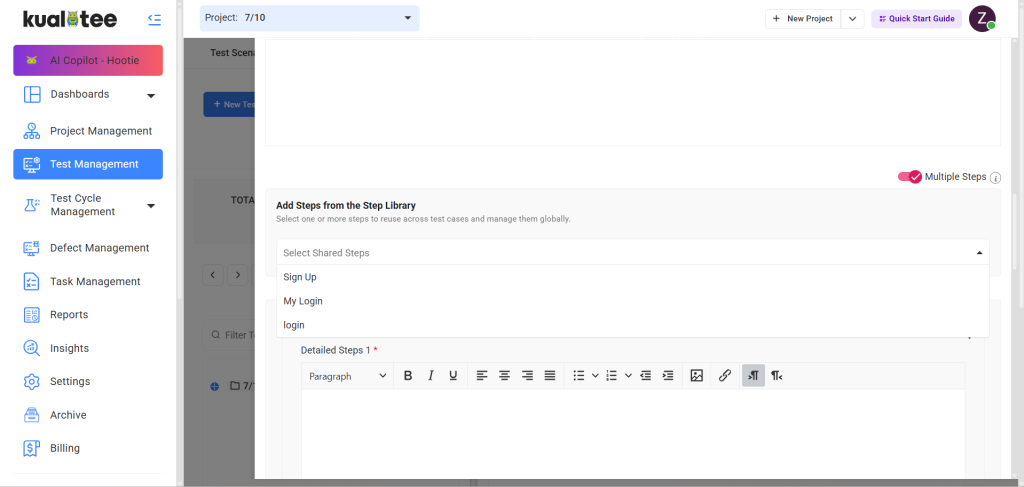
- Click the Shared Steps dropdown field.
- Select one or more reusable steps from the list.
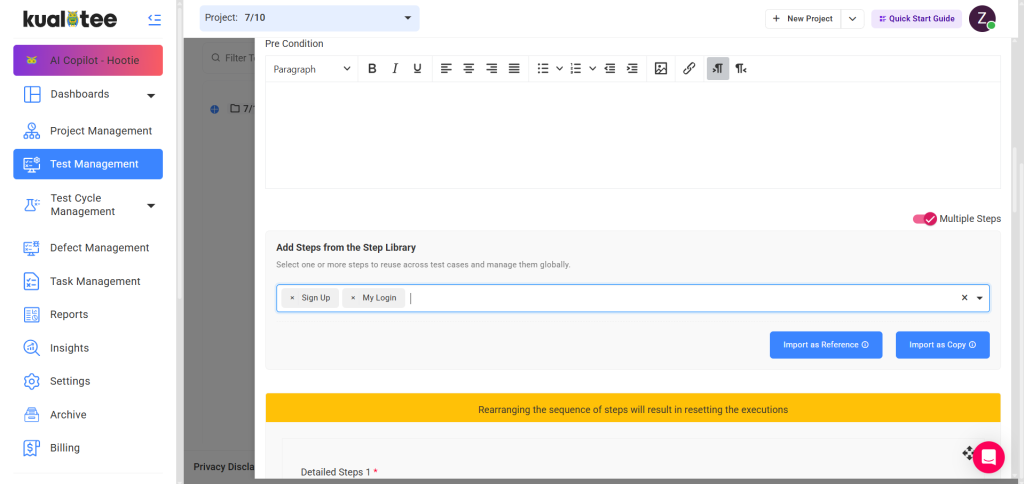
- Each selected step is displayed as a chip inside the field.
Step 4: Import the Selected Steps
After selecting at least one step, two import options become available.
Import as Reference
Click Import as Reference to insert a live reference to the selected step(s).
When imported as a reference:
- The test case remains linked to the original step in the Steps Library.
- Any future changes made to the original step are automatically reflected in every test case that references it.
- This option is ideal for standardized testing procedures that are reused across multiple test cases.
Import as Local Copy
Click Import as Local Copy to copy the selected step(s) into the test case.
When imported as a local copy:
- The selected steps become part of the test case.
- You can edit the copied steps without affecting the original step in the Steps Library.
- Future updates to the original step are not reflected in the copied version.
- This option is useful when a test case requires customized or one-time modifications.
Save the Test Case
After importing the required steps and completing the remaining test case details, click Save. The selected reusable steps are now included in the test case and are ready for execution.
User Guide
-
Dashboard
-
Project Management
-
Risk-Based Testing
-
Test Management
-
Hootie
-
Test Lab
-
Defect Management
-
Task Management
-
Reports
-
Insights
-
Settings
-
Integrations
-
SAML Authentications
-
Test Case Repositories