
OVERVIEW


FEATURES



BY TEAM


BY WORKFLOW


Test Set
How to Add a Test Set to a Test Case
- Login to Kualitee.
- Select your Project.
- Go to Test Management from the left menu.
- Click on the Test Sets tab (beside Test Cases tab).
- Click the + Test Set button.
- The Create Test Set panel will open.

- In the Name field, enter the name of the Test Set.
-
Under the Test Set section:
- Enter the Key (e.g., Browser, Username, Environment).
- Enter the corresponding Value (e.g., Chrome, AdminUser, Staging).
- Click the + (plus) icon in the Action column.
- Add additional Key–Value combinations as needed.
- Repeat if you want multiple entries.
- Click the Save button.
- The Test Set will now appear in the Test Sets listing screen.
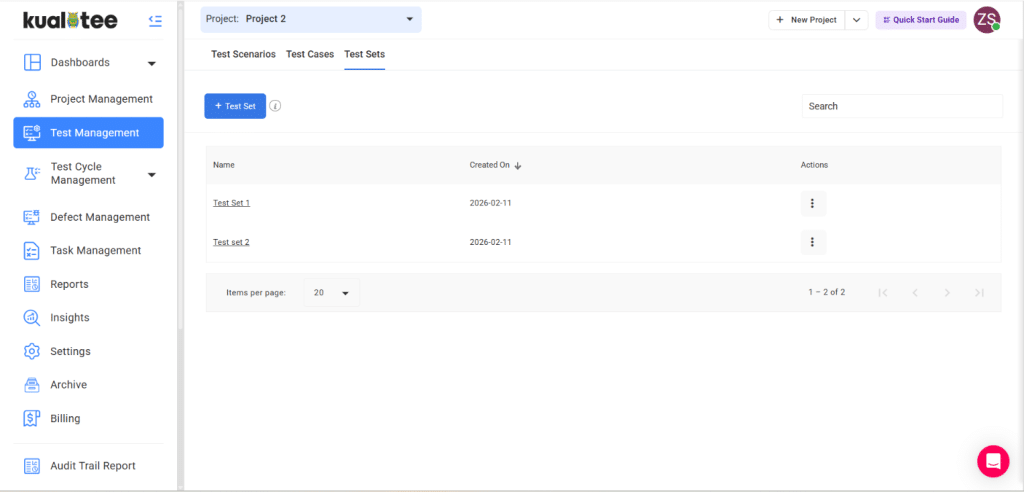
How to Add a Test Set to a Test Case
- Navigate to Test Management → Test Cases.
- Click + Test Case or open an existing test case.
- Locate the Test Set dropdown section.
- Select the desired Test Set from the dropdown.
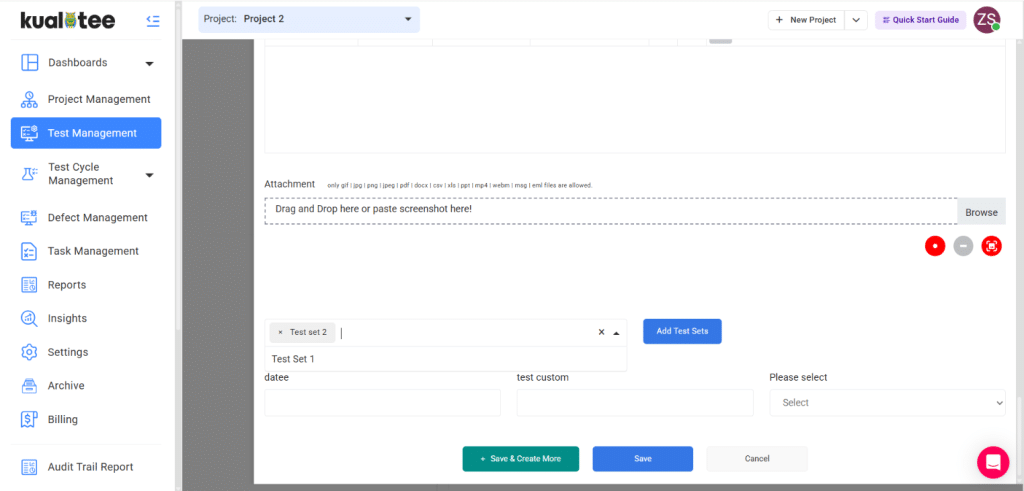
- Click Add Test Set.
- Multiple Test Sets can be added if required.
- Click Save.
- The Test Case will now be linked with the selected Test Set(s).
How Test Set Works in Test Cycle Execution
- Add the Test Case (with Test Set) to a Test Cycle.
-
In the Execution screen:
- Each Test Set will create a separate execution entry.
- Each execution can be marked Pass/Fail individually.
- Each Test Set execution can only be executed once.
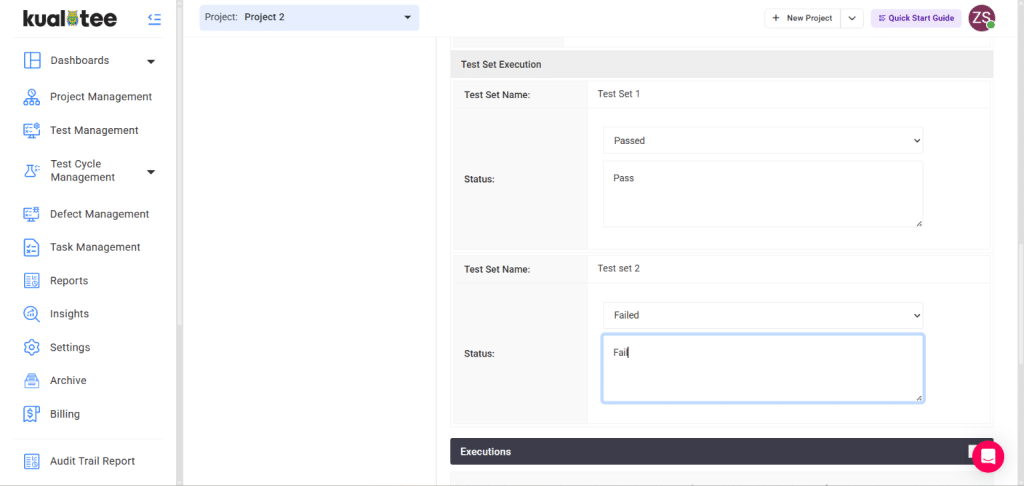
View Test Set Execution in Test Execution Reports
- Go to Reports.
- Select Test Execution Report.
- Click on Extended Search.
- Locate the Test Set filter.
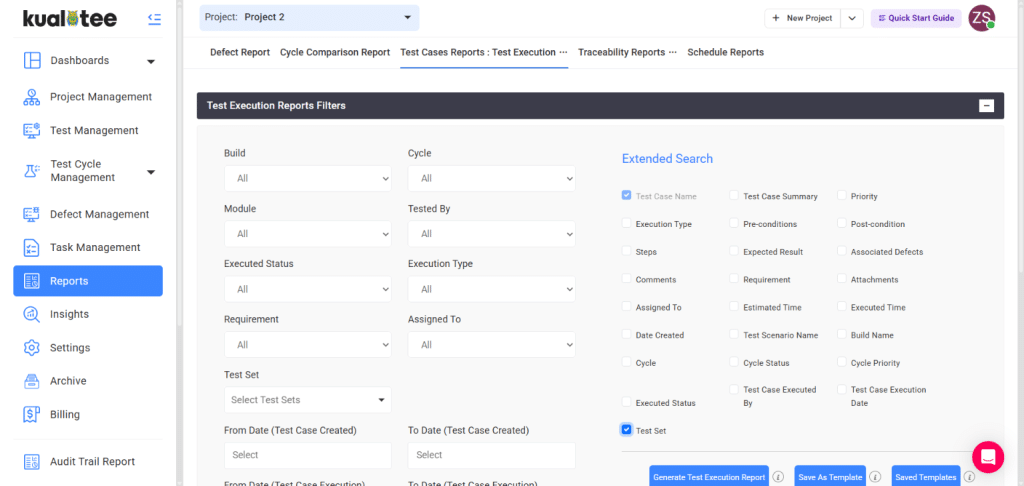
- Select the desired Test Set.
- Click Generate Report.
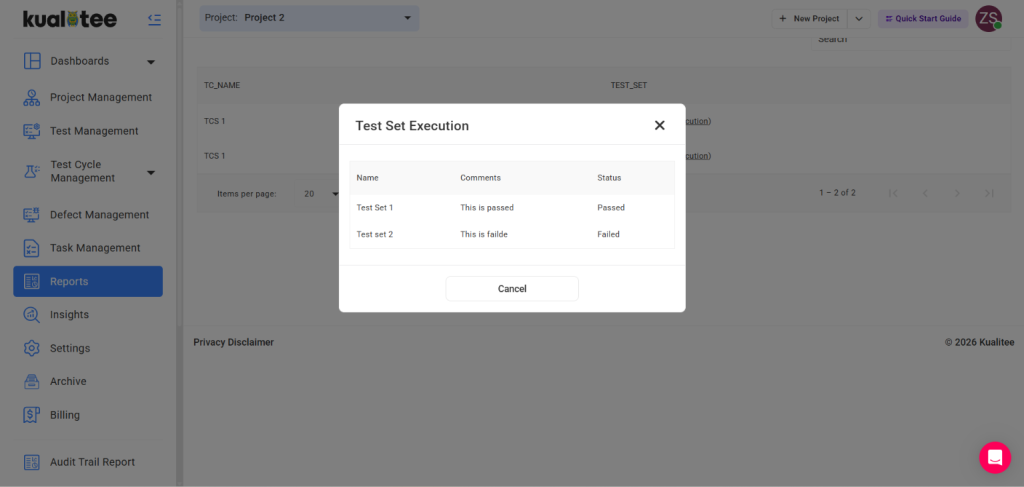
- After report generation, click on “View Test Sets Execution”.
User Guide
-
Dashboard
-
Project Management
-
Test Management
-
Hootie
-
Test Lab
-
Defect Management
-
Task Management
-
Reports
-
Insights
-
Settings
-
Integrations
-
SAML Authentications
-
Test Case Repositories